Prequisites
In order to use Blazor, you need to have the following installed:
-
.NET Core SDK 3.0 or higher
-
An IDE of your choice (I recommend Visual Studio Community 2019 or Visual Studio Code)
Creating a New Project
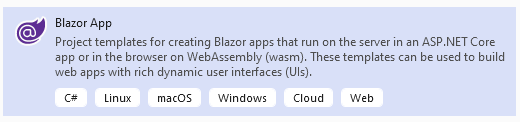
If using Visual Studio Community, you can create a new Blazor project using the wizard. It will ask you if the project should be WebAssembly or Server. We’ll cover these in a bit.
If using Visual Studio Code or another IDE, you can use the command line tool dotnet within the empty project directory like so:
dotnet new blazorwasm for WebAssembly or dotnet new blazorserver for Server Hosted
This will create the necessary files including some simple examples.
Run the Project
In Visual Studio Community, all you need to do is click the Play button and a new web browser will pop up with the site.
In Visual Studio Code, you’ll need to run the command dotnet run which will first build then run the project. You’ll need to open a web browser manually and navigate to the URL provided in the terminal output.
Ctrl-C at the command prompt will exit the server once you’re done.
Now What?
I highly recommend to look at the sample code provided by Microsoft in these examples and attempt to figure out how the code causes what you see when you run the project.